🤖 机器人眼睛动画的实现 2

!本篇文章过于久远,其中观点和内容可能已经不准确,请见谅!~
想分享的是一个已经有初步思路的问题,怎么再进一步实现我们的目标形态。
先看结果:(DEMO 预览可以到 机器人眼睛动画的演示)
上一篇文章写了实现静态的图像了,不过官方的开源中还包含了一个动画的资源,多达一千多个动画,这篇文章写写怎么实现这个动画。
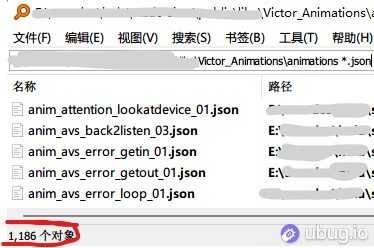
先看一个动画的控制数据:
{"anim_attention_lookatdevice_01": [{"durationTime_ms": 66,"triggerTime_ms": 0,"Name": "LiftHeightKeyFrame","heightVariability_mm": 0,"height_mm": 32},{"angleVariability_deg": 0,"angle_deg": 0,"triggerTime_ms": 0,"Name": "HeadAngleKeyFrame","durationTime_ms": 66},{"Name": "ProceduralFaceKeyFrame","faceScaleY": 0.9664786143465788,"scanlineOpacity": 1.0,"faceScaleX": 0.8656703051258197,"leftEye": [ 8.107326060759803, 0.0, 1.72115997174465, 1.1453089027930028, 0.0, 0.6, 0.6, 0.6, 0.6, 0.6, 0.6, 0.6, 0.6, 0.0, 0.0, 0.0, 0.0, 0.0, 0.0, 1, 1.0, 0.0, 0.0, 0.0, 0],"faceAngle": 0.0,"durationTime_ms": 0,"faceCenterY": 0.0,"faceCenterX": 0.0,"rightEye": [ -7.315991464547729, 0.0, 1.72115997174465, 1.144941064931666, 0.0, 0.6, 0.6, 0.6, 0.6, 0.6, 0.6, 0.6, 0.6, 0.0, 0.0, 0.0, 0.0, 0.0, 0.0, 1, 1.0, 0.0, 0.0, 0.0, 0],"triggerTime_ms": 0},{"eventGroups": [{"probabilities": [1.0],"audioName": ["Play__Robot_Vic_Sfx__Head_Up_Short"],"eventIds": [2451569527],"volumes": [1.0]}],"triggerTime_ms": 66,"Name": "RobotAudioKeyFrame"},{"Right": [ 0.0, 0.0, 0.0, 0.0],"Name": "BackpackLightsKeyFrame","durationTime_ms": 66,"Back": [ 0.0, 0.0, 0.0, 0.0],"Middle": [ 0.0, 0.0, 0.0, 0.0],"Front": [ 0.0, 0.0, 0.0, 0.0],"triggerTime_ms": 0,"Left": [ 0.0, 0.0, 0.0, 0.0]},{"durationTime_ms": 99,"speed": -2,"triggerTime_ms": 66,"Name": "BodyMotionKeyFrame","radius_mm": 1}]}
大概能分析有多种类型的控制,以 ms 为单位排布,能控制多种类型:
FaceAnimationKeyFrame // 表情控制关键帧ProceduralFaceKeyFrame // 程序表情关键帧RobotAudioKeyFrame // 声音关键帧BackpackLightsKeyFrame // 背部灯光关键帧LiftHeightKeyFrame // 手部高度关键帧BodyMotionKeyFrame // 身体运动关键帧HeadAngleKeyFrame // 头部角度关键帧
我们这里关心的就是表情控制和程序表情关键帧,在程序里面被称为:动画片段 (animClip)
和序列帧动画 (spriteSequence)
看下关键帧的参数,就会发现和上一篇文章说的 pose 应该是同一套数据,只需要略加转换就能用了。
{"Name": "ProceduralFaceKeyFrame","faceScaleY": 0.9664786143465788,"scanlineOpacity": 1.0,"faceScaleX": 0.8656703051258197,"leftEye": [ 8.107326060759803, 0.0, 1.72115997174465, 1.1453089027930028, 0.0, 0.6, 0.6, 0.6, 0.6, 0.6, 0.6, 0.6, 0.6, 0.0, 0.0, 0.0, 0.0, 0.0, 0.0, 1, 1.0, 0.0, 0.0, 0.0, 0],"faceAngle": 0.0,"durationTime_ms": 0,"faceCenterY": 0.0,"faceCenterX": 0.0,"rightEye": [ -7.315991464547729, 0.0, 1.72115997174465, 1.144941064931666, 0.0, 0.6, 0.6, 0.6, 0.6, 0.6, 0.6, 0.6, 0.6, 0.0, 0.0, 0.0, 0.0, 0.0, 0.0, 1, 1.0, 0.0, 0.0, 0.0, 0],"triggerTime_ms": 0}
具体这些参数的含义能够在 这里 找到。
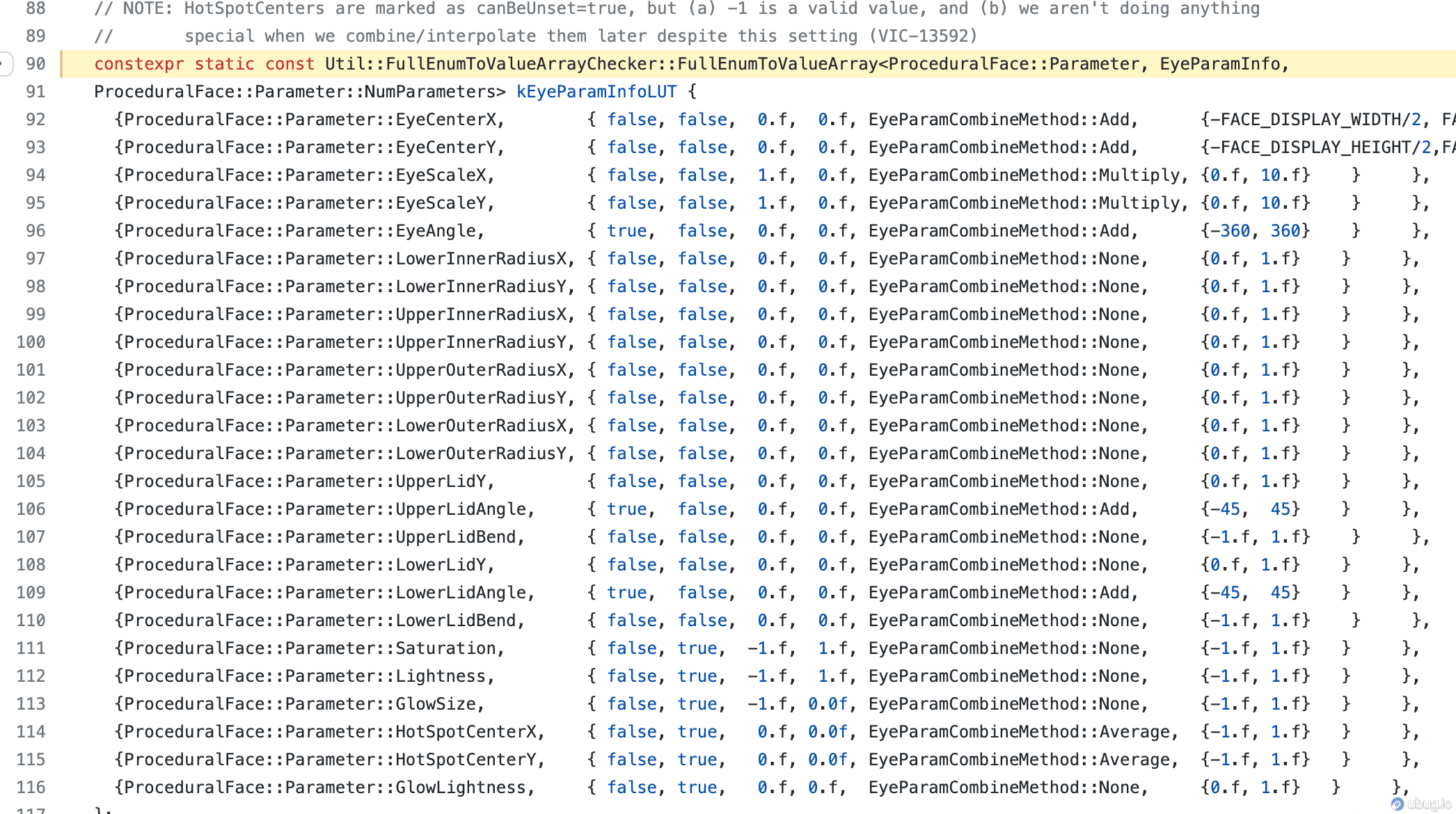
默认值和含义都是和 json 文件中的参数都是一一对应的,而且提供了更详细的参数类型和计算方法,比如眼睛的位置是和默认的表情参数位置相加的值,范围在宽度的一半之间。
// 比如drawEyeX = neutralEyeX + [配置的参数]
而默认的表情在 这里 可以找到名称:
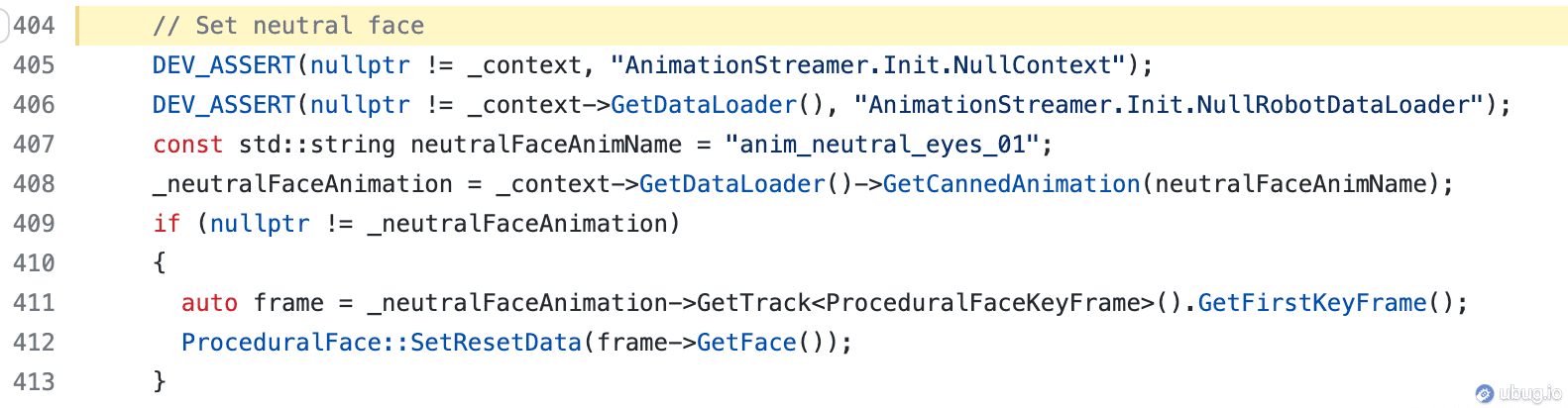
翻下动画文件夹找到
anim_neutral_eyes_01 拿到默认的表情配置:{"Name": "ProceduralFaceKeyFrame","triggerTime_ms": 0,"durationTime_ms": 0,"scanlineOpacity": 1.0,"faceScaleX": 1.0,"faceScaleY": 1.0,"faceCenterX": 0.0,"faceCenterY": 0.0,"faceAngle": 0.0,"leftEye": [8.107326060759803, 0.0, 1.5174507300664741, 1.1453089027930028, 0.0, 0.6, 0.6, 0.6, 0.6, 0.6, 0.6, 0.6, 0.6, 0.0, 0.0, 0.0, 0.0, 0.0, 0.0, 1.0, 1.0, 0.0, 0.0, 0.0, 0.0],"rightEye": [-7.315991464547729, 0.0, 1.5174507300664741, 1.144941064931666, 0.0, 0.6, 0.6, 0.6, 0.6, 0.6, 0.6, 0.6, 0.6, 0.0, 0.0, 0.0, 0.0, 0.0, 0.0, 1.0, 1.0, 0.0, 0.0, 0.0, 0.0]}
比照着上面的参数含义,加上一点点的翻看源码,我们能够知道默认的表情下的各个参数:
// 整个面部尺寸FACE_DISPLAY_WIDTH = 184FACE_DISPLAY_HEIGHT = 96// 单个眼睛大小NominalEyeHeight = 57NominalEyeWidth = 43// 两个眼睛间距大小kProcFace_NominalEyeSpacing = 92// 根据间距计算两个眼睛的绝对位置const NominalLeftEyeX = (FACE_DISPLAY_WIDTH - kProcFace_NominalEyeSpacing) / 2;const NominalRightEyeX = NominalLeftEyeX + kProcFace_NominalEyeSpacing;
大致能看出来动画 Clip 的实现才是整个表情的核心,之前的 POSE 的实现也是来自于此。
有了这些参数,源码里面也有其他圆角的实现,这里我们就可以重构出一版准确绘制的实现了。
drawFace = (ctrls: EyesControls,blink: BlinkParams = { x: 1, y: 1 },) {// 清空画布this.scope.project.clear();// 新建图层new this.scope.Layer();// 创建新的矩形以便绘制样式const rect = new this.scope.Rectangle(FACE_DISPLAY_WIDTH,FACE_DISPLAY_HEIGHT);new this.scope.Path.Rectangle(rect);// 新建图层const activeLayer = new this.scope.Layer();// 绘制两个眼的形状this.genEyeShape(ctrls.left, blink);this.genEyeShape(ctrls.right, blink);// 施加缩放、旋转和变形的操作activeLayer.scale(ctrls.FaceScaleX, ctrls.FaceScaleY);activeLayer.rotate(ctrls.FaceAngle);activeLayer.translate(...);}
genEyeShape(ctrl: EyeControls, blink: BlinkParams = { x: 1, y: 1 }) {// ... 获取基本参数// ========== 眼睑const newLidClip = new this.scope.Path();const lidFix = new this.scope.Point(EyeCenterX - halfEyeWidth, EyeCenterY - halfEyeHeight);const upperYAdj = halfEyeWidth * Math.tan((Math.PI / 180) * UpperLidAngle);const upperYRad = -UpperLidBend * eyeHeight;const upperY = -UpperLidY * eyeHeight;newLidClip.add(new this.scope.Point(-1, upperY - upperYAdj).add(lidFix));newLidClip.quadraticCurveTo(new this.scope.Point(halfEyeWidth, upperYRad).add(lidFix),new this.scope.Point(eyeWidth + 1, upperY + upperYAdj).add(lidFix));//...下眼睑// ========== 眼角const eyeSize = [halfEyeWidth, halfEyeHeight];const cornerCalc = (v: number[]) => v.map((v, i) => v * eyeSize[i]);let cornerOT = cornerCalc([ctrl.UpperOuterRadiusX, ctrl.UpperOuterRadiusY]);let cornerIT = cornerCalc([ctrl.UpperInnerRadiusX, ctrl.UpperInnerRadiusY]);let cornerIB = cornerCalc([ctrl.LowerInnerRadiusX, ctrl.LowerInnerRadiusY]);let cornerOB = cornerCalc([ctrl.LowerOuterRadiusX, ctrl.LowerOuterRadiusY]);const newEye = new this.scope.Path();// 左上圆角,从左边画圆弧到上边newEye.add(new this.scope.Point(0, cornerOT[1]));newEye.quadraticCurveTo(new this.scope.Point(0, 0),new this.scope.Point(cornerOT[0], 0));//... 其他的圆角newEye.closed = true;newEye.position = new this.scope.Point(ctrl.EyeCenterX, ctrl.EyeCenterY);// ====================== 眼睛和眼睑的交集const eyeIntersect = newLidClip.intersect(newEye, { insert: true });// 获取交集之后,之前的形状删除newLidClip.remove();newEye.remove();// ====================== 眼睛的变换eyeIntersect.scale(ctrl.EyeScaleX * (blink.x || 1),ctrl.EyeScaleY * (blink.y || 1));eyeIntersect.rotate(-ctrl.EyeAngle);// ====================== 瞳孔const pupil = new this.scope.Path.Circle(new this.scope.Point(ctrl.HotSpotCenterX * halfEyeWidth + halfEyeWidth,-ctrl.HotSpotCenterY * halfEyeWidth + halfEyeHeight),this.globalConf.pupilSize / 2);pupil.position = new this.scope.Point(ctrl.EyeCenterX, ctrl.EyeCenterY);// ====================== 瞳孔与眼睛的交集const pupilCliper = eyeIntersect.clone();const pupilIntersect = pupilCliper.intersect(pupil, { insert: true });pupil.remove();pupilCliper.remove();
上面是核心的绘制部分(去掉了非核心的样式之类的),最后能获得我们想要的官方的绘制逻辑,更好的是我们这是矢量的绘制,可以做更好玩的效果,比如描边而不是填充。
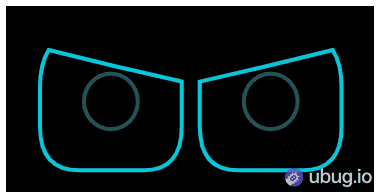
ps: 绘制转为矢量 svg 的时候,想要两个路径的交集但是计算会很复杂,简单查询后发现 paper.js 很强大,处理 svg 交集很方便,最后实现效果很不错。
对业务的启示:随着调研和实现的深入,业务细节的了解,找到了相对更好的切入点,所以重构也是为了更好的实现业务,方便后续更高级的扩展。
上面一节虽然是在研究动画片段,但是更多的是根据动画片段的参数重构绘制逻辑。下面层爱是动画的实现。
我们再深入调研下动画文件,能够得出几个结论:
- triggerTime_ms 是动画的时间信息
- 关键帧是一套表情
- 在规定的时间绘制这个表情即可
- 绘制时间都是 33 的倍数,也就是 30 fps 的动画
所以做一个时间管理器,30fps 的帧率调用绘制,在相应的触发时间触发对应的绘制就实现了动画。
所以先实现一个简单的 FPS 时间控制器:
import { getUUID } from "./uuid";export class Ticker {constructor(){this.fps = 30this.then = Date.now()this.interval = 1000 / this.fps;this.globalFrame = 0}runner: number = -1drawers: { [i: string]: () => void } = {}registDrawers = (func: () => void, name?: string): () => void => {const uid = name || getUUID()this.drawers[uid] = funcif (this.runner) cancelAnimationFrame(this.runner)this.globalTick();return () => {if (this.drawers[uid]) delete this.drawers[uid]}}afterOneFrame = (func: () => void) => {const uid = getUUID()this.drawers[uid] = () => {func()if (this.drawers[uid]) delete this.drawers[uid]}if (this.runner) cancelAnimationFrame(this.runner)this.globalTick();}pause() {if (this.runner) cancelAnimationFrame(this.runner)}stop(){if (this.runner) cancelAnimationFrame(this.runner)for (const key in this.drawers) {if (Object.prototype.hasOwnProperty.call(this.drawers, key)) {delete this.drawers[key];}}}resume() {if (this.runner) cancelAnimationFrame(this.runner)this.globalTick();}realFPS = 30fps = 30then = Date.now()interval;globalFrame = 0globalTick = () => {let now = Date.now();let delta = now - this.then;if (delta > this.interval) {this.realFPS = 1000 / deltathis.globalFrame++this.then = now - (delta % this.interval);for (const key in this.drawers)if (Object.prototype.hasOwnProperty.call(this.drawers, key))this.drawers[key]()}this.runner = requestAnimationFrame(this.globalTick);}}
网上也能找到现成的项目,不过也就是根据 FPS 控制每一帧的运行时机,然后增加一堆辅助机制帮助运行控制。
然后就是遍历关键帧按照顺序执行绘制了:
// 后续还添加了序列帧、事件等逻辑的实现,所以这个不是最终版!!!只是示意runAniKeyFrames(keyframes: AniKeyFrame[]) {// 计算总帧数(包括关键帧和序列帧)let totalFrames = -Infinity;keyframes.forEach((keyframe) => {if (keyframe.Name === "ProceduralFaceKeyFrame") {totalFrames = Math.max(totalFrames,msToFrame(keyframe.triggerTime_ms + keyframe.durationTime_ms));}});// 帧数循环体const runFrame = (frameIndex: number) => {// 查找关键帧中是否有符合时间的帧const matchFrames = keyframes.filter((frame) =>msIsFrame(frame.triggerTime_ms, frameIndex));// 如果有,那么播放这些帧if (matchFrames.length > 0) {matchFrames.forEach((frame) => {if (frame.Name === "ProceduralFaceKeyFrame") {// 控制参数的帧const controls = applyKeyFrameOnControls(frame, this.globalConf);this.applyControls(controls, undefined, "frame");}});}if (frameIndex >= totalFrames) dispose();};// 开始循环let globalFrameSave = this.ticker.globalFrame;dispose = this.ticker.registDrawers(() => {runFrame(this.ticker.globalFrame - globalFrameSave);});runFrame(0);}
这样的话就实现了最基本的关键帧播放了:
序列帧相比之下更简单,因为序列帧的动画是预设好的一帧帧的画面,只要每一帧展示一下动画即可。
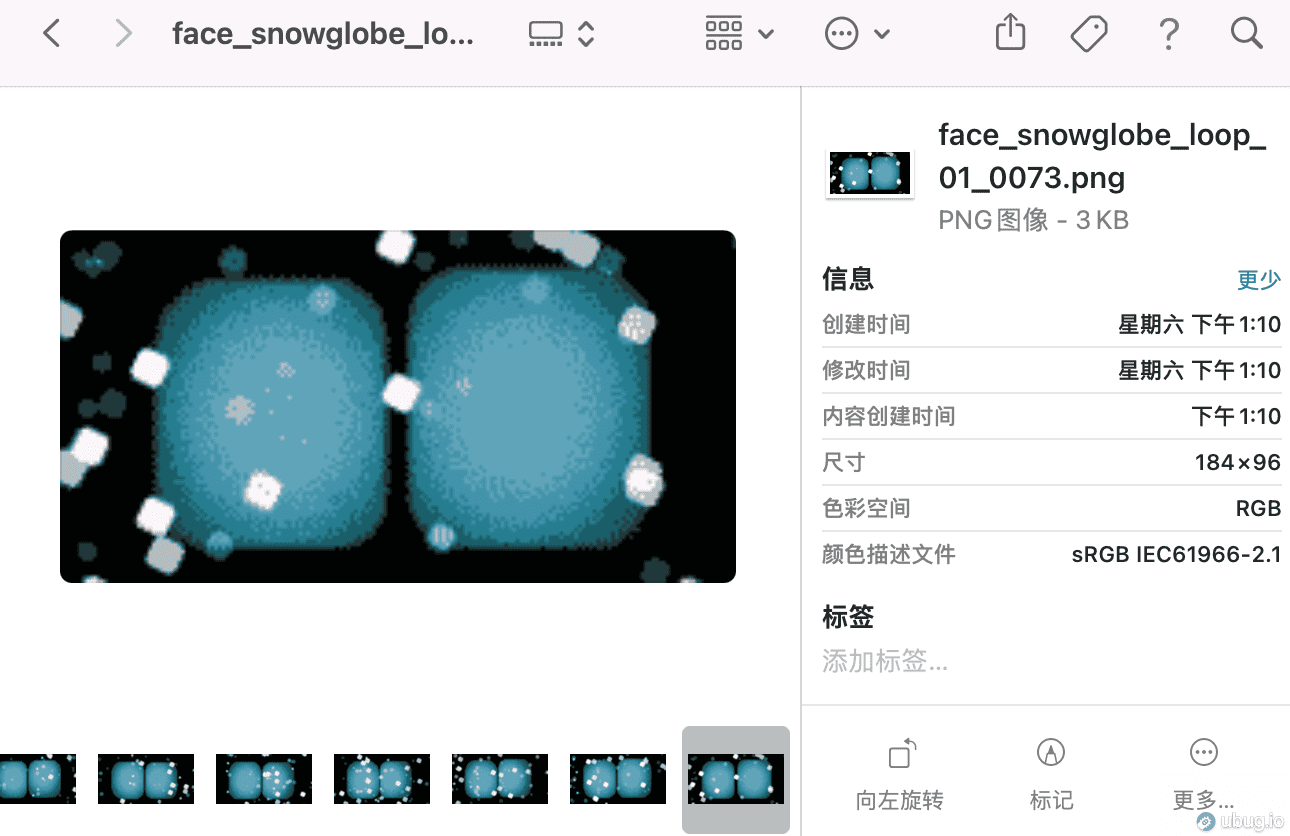
不过需要注意的是这些图片必须提前加载,否则一帧的时间里面加载会出现闪现的情况。
// 根据 url 加载为 DataUrl,这样的话显示耗时不需要等待网络const loadSpritesByName = async (name: string) => {if (spritesCache[name]) return spritesCache[name];const sprite = sprites.find(s => s.name === name)if (sprite) {const asyncList = new Array(sprite.count).fill(0).map(async (v, i) => fetchAsDataURL(getSpriteUrl(sprite, i)))spritesCache[sprite.name] = await Promise.all(asyncList)return spritesCache[sprite.name]}return null}
绘制图像的操作就不贴了,直接展示结果:
预览可以到 机器人眼睛动画的演示
感谢您的阅读,本文由 Ubug 版权所有。如若转载,请注明出处:Ubug(https://ubug.io/blog/k-vrc-vector-cozmo-2)